

CloudLink user guide
Contents
- Getting CloudLink
- The window
- Downloading
- OneDrive and SharePoint
- Google Drive: the one-time setup, step by step
- Checking your download
- Troubleshooting
- Where things are kept
Getting CloudLink
- Microsoft Store: install AMG CloudLink. The Store signs it and keeps it up to date.
- GitHub: download
CloudLink.exefrom the latest release. It is a single file that needs no installing; see Checking your download.
The window
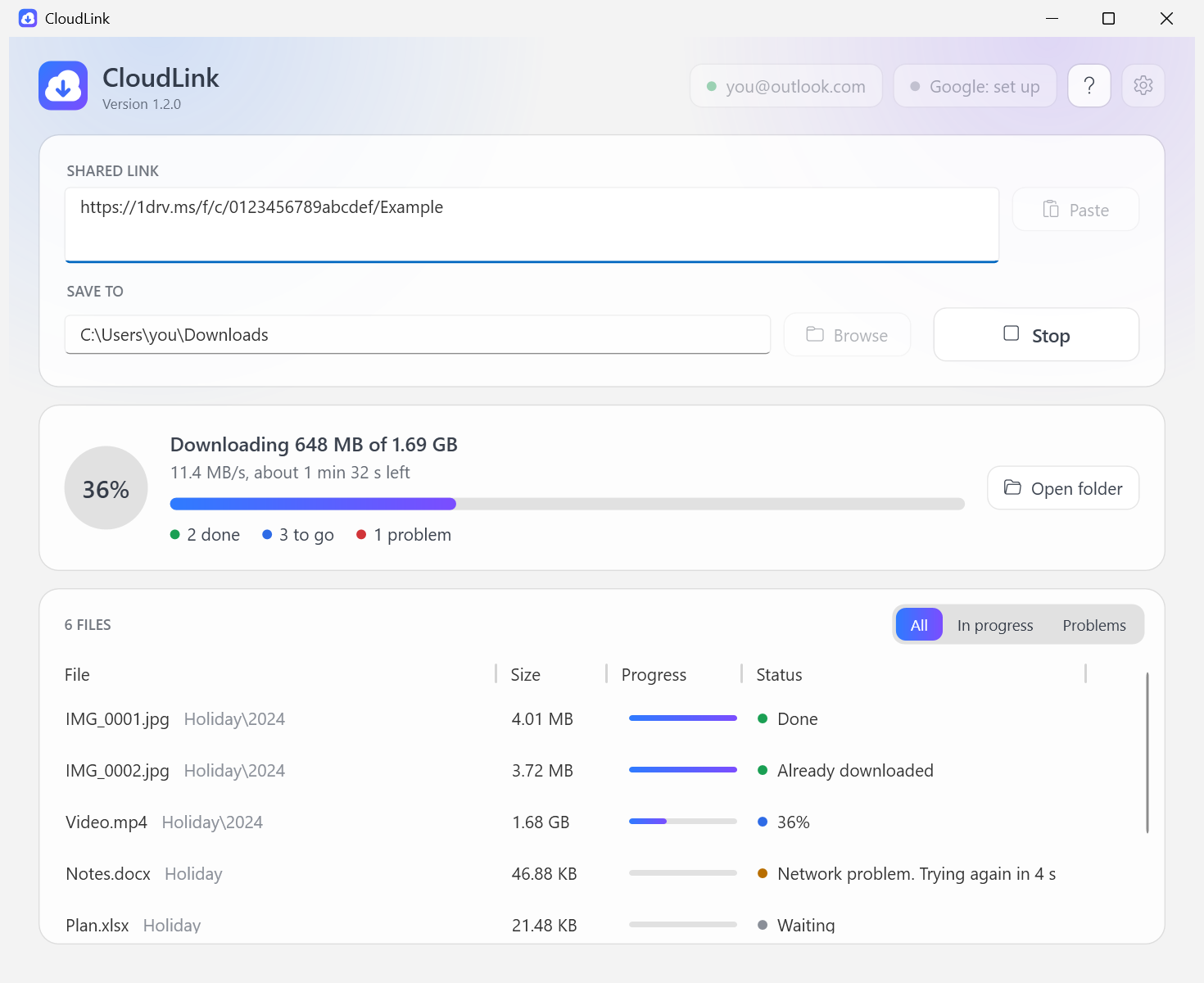
From top to bottom:
- Accounts, Help and Settings (top right). A green dot means that account is signed in. Click an account to sign in or out. ? or F1 opens Help.
- Shared link and Save to. What to download and where it goes. Download starts; while a download runs the same spot shows Stop.
- Status. What is happening now: overall progress, speed, time left, and counts of files done, to go, and with problems.
- Files. Every file with its own progress and status. In progress and Problems narrow the list.
Downloading
- Paste a share link. Several links go on separate lines. You can also drop a link on the window.
- Check the Save to folder. A shared folder named Holiday is saved as
<Save to>\Holiday\.... - Press Download.
CloudLink first looks through the link to find every file, then downloads four files at a time (changeable in Settings).
Stopping and continuing
Press Stop at any time. Finished files stay; unfinished ones are kept with a .part ending. Press Continue (or Download with the same link and folder, even days later) and CloudLink carries on from where it stopped. Files that are already complete are not downloaded again.
The same applies after a lost connection, sleep, a crash or a reboot.
What the statuses mean
| Status | Meaning |
|---|---|
| Waiting | In the queue. |
| a percentage | Downloading now. |
| Checking | Downloaded; being compared with the service's checksum. |
| reason. Trying again in n s | Something went wrong and CloudLink is retrying on its own. |
| Waiting for the network to come back | The PC is offline. Nothing is lost; it continues when the network returns. |
| Done | Complete and verified. |
| Already downloaded | The file was there from an earlier run. |
| Skipped: reason | The item has no file content, for example a Google Form. |
| Failed: reason | CloudLink gave up after repeated attempts. Press Try again. |
| Stopped | You pressed Stop while it was downloading. |
Accounts
OneDrive and SharePoint
Press Download with a OneDrive link, or click Microsoft: sign in. Your browser opens; sign in with the Microsoft account that can open the link. You do not need an Azure account, a tenant or anything else from Microsoft beyond that account.
Use the kind of account that matches the link: a personal Microsoft account for links from a personal OneDrive (1drv.ms, onedrive.live.com), a work or school account for links from an organisation (...sharepoint.com). A personal-OneDrive link shared with anyone can be opened with any personal account.
Microsoft's permission page says the app can edit your files. Microsoft Graph only opens share links for apps holding a read-write permission, so there is no way around asking for it. CloudLink only downloads: it never uploads, changes or deletes files. (Opening a link records your account as having opened it, exactly as opening it in a browser does.) The page also calls the app unverified, which is about a Microsoft business programme and not about the program itself.
If the button reads Microsoft: set up instead, this copy of CloudLink was built without an application ID and needs one entered in Settings; see APP-REGISTRATION.md.
Work or school accounts. By default, organisations do not let their people approve an app like this themselves. If Microsoft's page says Need admin approval, an administrator has to approve CloudLink once for the organisation; APP-REGISTRATION.md has the link to send them and the alternatives.
Google Drive
CloudLink has no Google registration of its own, so before it can read Google Drive you create access for it yourself in the Google Cloud console. You do this once. Using the Drive API this way is free of charge today, and the whole setup takes ten to fifteen minutes.
There are two routes. Choose by the kind of link you want to download; you can set up both.
| You want to download | Route | What you create in the console |
|---|---|---|
| Links that anyone with the link can open | A: an API key | An API key |
| Private links: files shared with your Google account, or your own | B: sign-in, not yet tested against Google | A consent screen and a "Desktop app" client; you then sign in with your Google account |
Once you are signed in (route B), CloudLink uses the sign-in for every Google link and the key is no longer used.
Before you start: a project with the Drive API
Both routes begin the same way. You need a Google account with 2-Step Verification switched on; Google asks for it before it opens the Cloud console.
- Open https://console.cloud.google.com and sign in. Accept Google's terms of service if it asks. You do not need the free trial, a billing account or a payment card for anything in this guide; if Google offers them, close the offer.
- Create a project. Open the menu (☰) → IAM & Admin → Create a Project. Type a Project name, for example
CloudLink, and press Create. When Google's notification says the project is created, open the project from that notification, or pick it in the project list at the top of the page. Go on only when its name is shown there. - Switch on the Drive API. Menu → APIs & Services → Library, find Google Drive API, open it and press Enable. This address goes straight there: https://console.cloud.google.com/flows/enableapi?apiid=drive.googleapis.com.
Google renames things from time to time. If a label here differs a little from what you see, pick the nearest match.
Route A: an API key, for links anyone can open
An API key identifies your project to Google, not you. With it CloudLink can read only what is shared as Anyone with the link. Do Before you start first.
In the Cloud console open the menu → APIs & Services → Credentials, then Create credentials → API key.
Fill in the panel as marked in the picture.
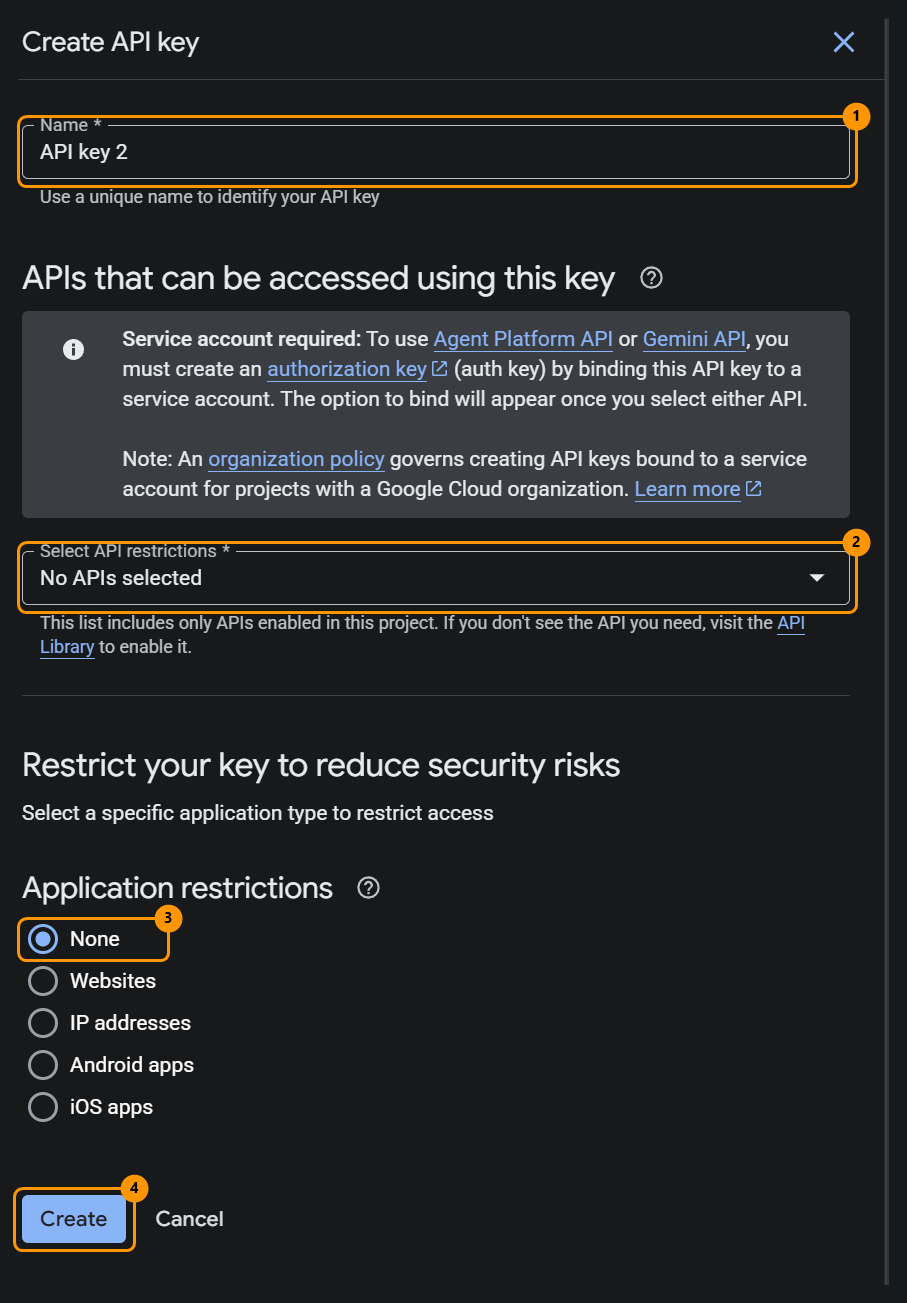
- Mark 1, Name: anything that tells you what the key is for, such as
CloudLink. - Mark 2, Select API restrictions: open the list and tick Google Drive API, and nothing else. The list shows only the APIs switched on in the project; if Google Drive API is missing, go back to step 3 of Before you start.
- Mark 3, Application restrictions: leave None. The other choices are for websites, phone apps and servers with a fixed address. With the first two Google refuses CloudLink's requests, and with the third it accepts them only from the addresses on the key's list.
- Mark 4: press Create.
The note about a service account in that panel is about other Google services and does not apply here.
- Mark 1, Name: anything that tells you what the key is for, such as
Google shows the new key. Copy it. Treat it like a password: do not post it or send it to anyone.
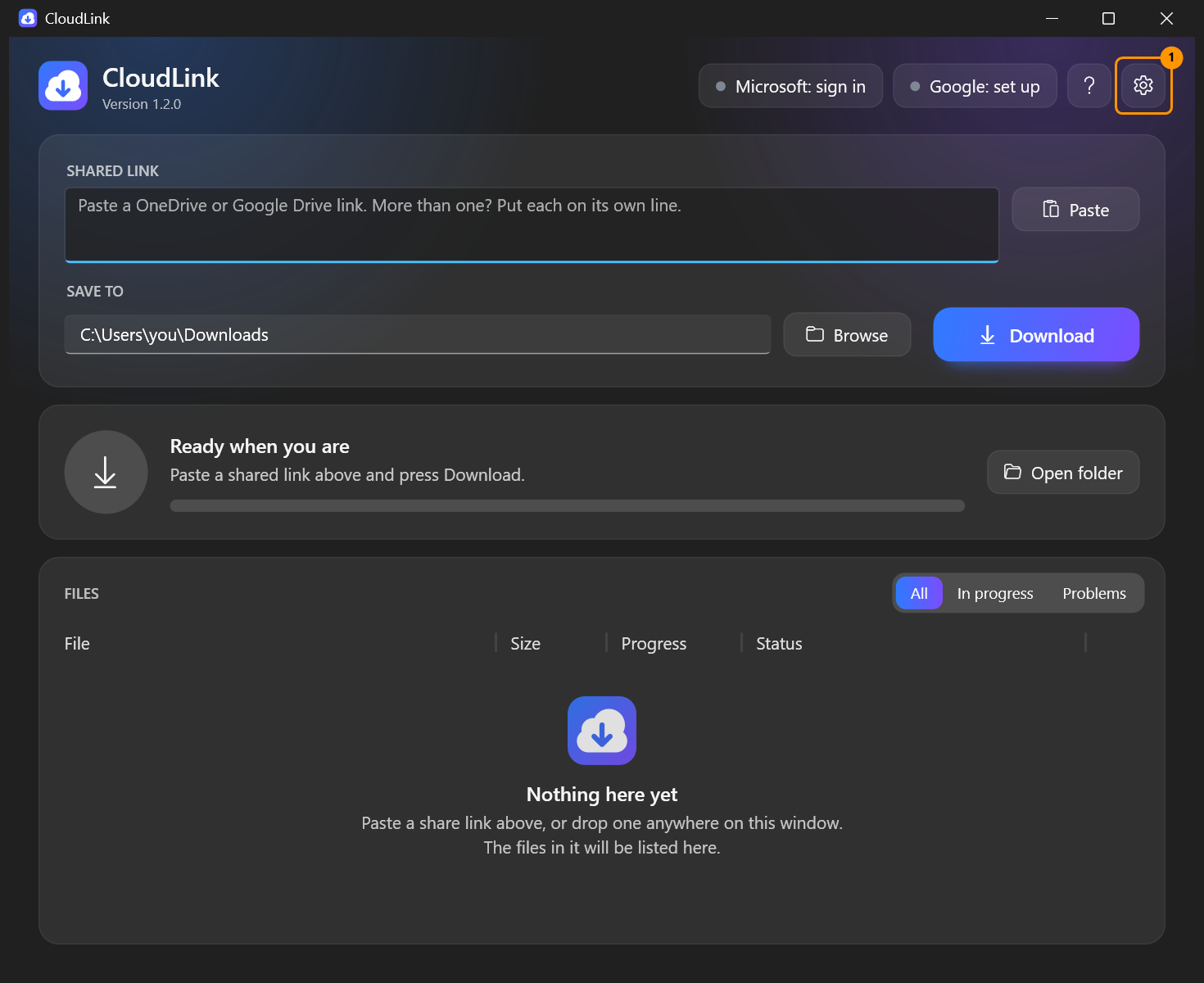
In CloudLink press the Settings button, the gear at the top right.
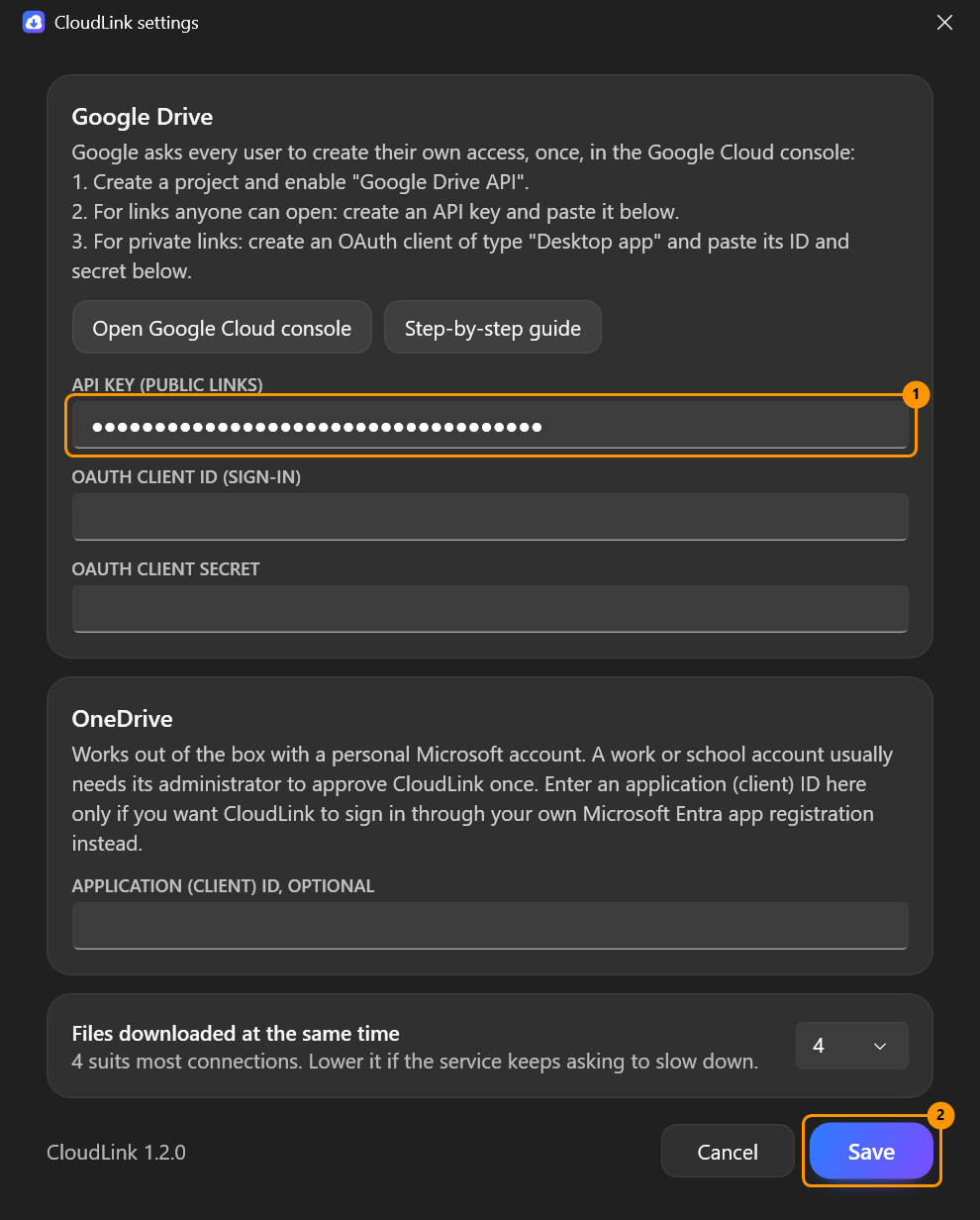
Paste the key into API key (public links) and press Save.
The Google button at the top right now reads Google: public links only.
Paste the Google Drive link and press Download.
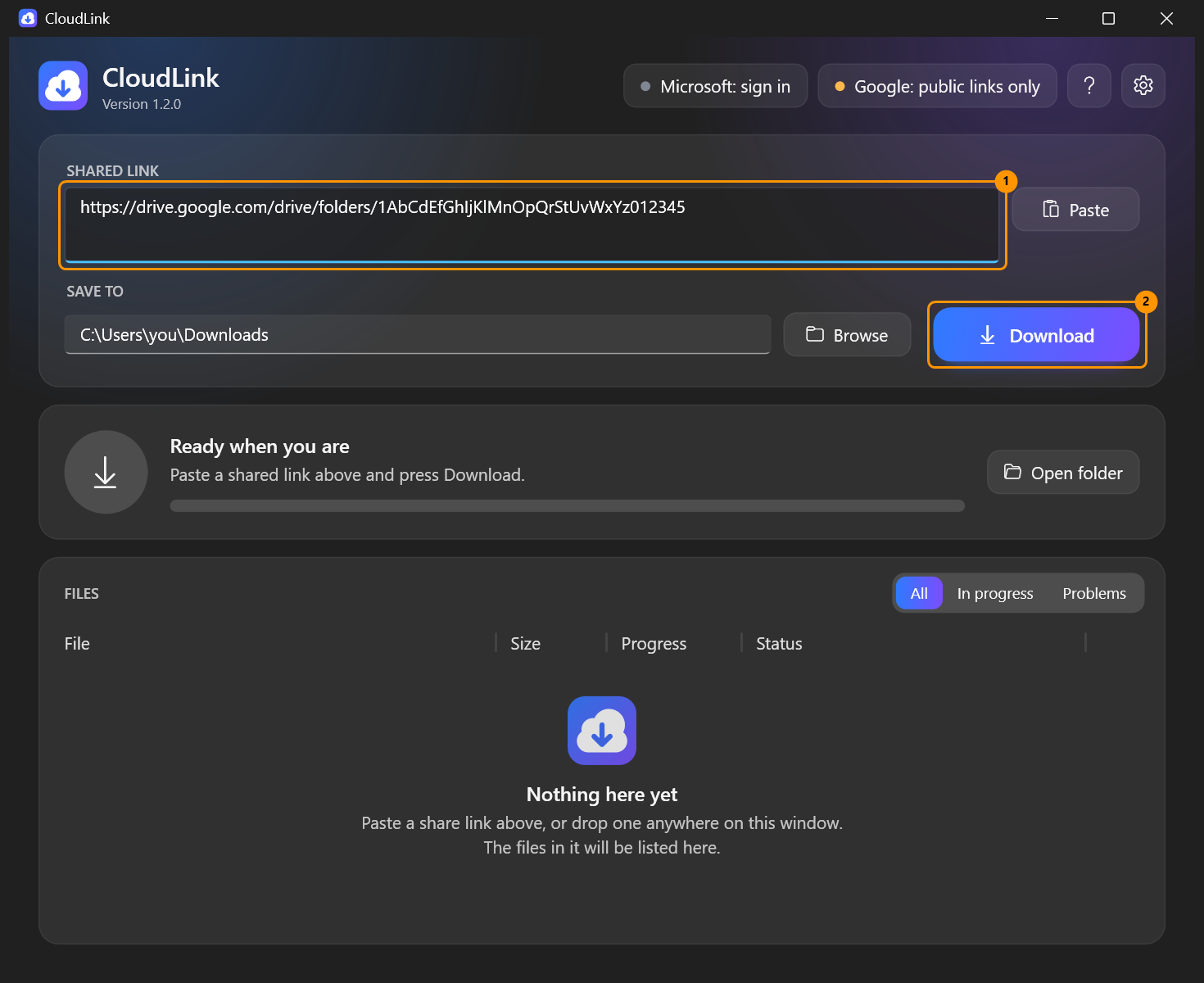
CloudLink lists the files behind the link and downloads them.
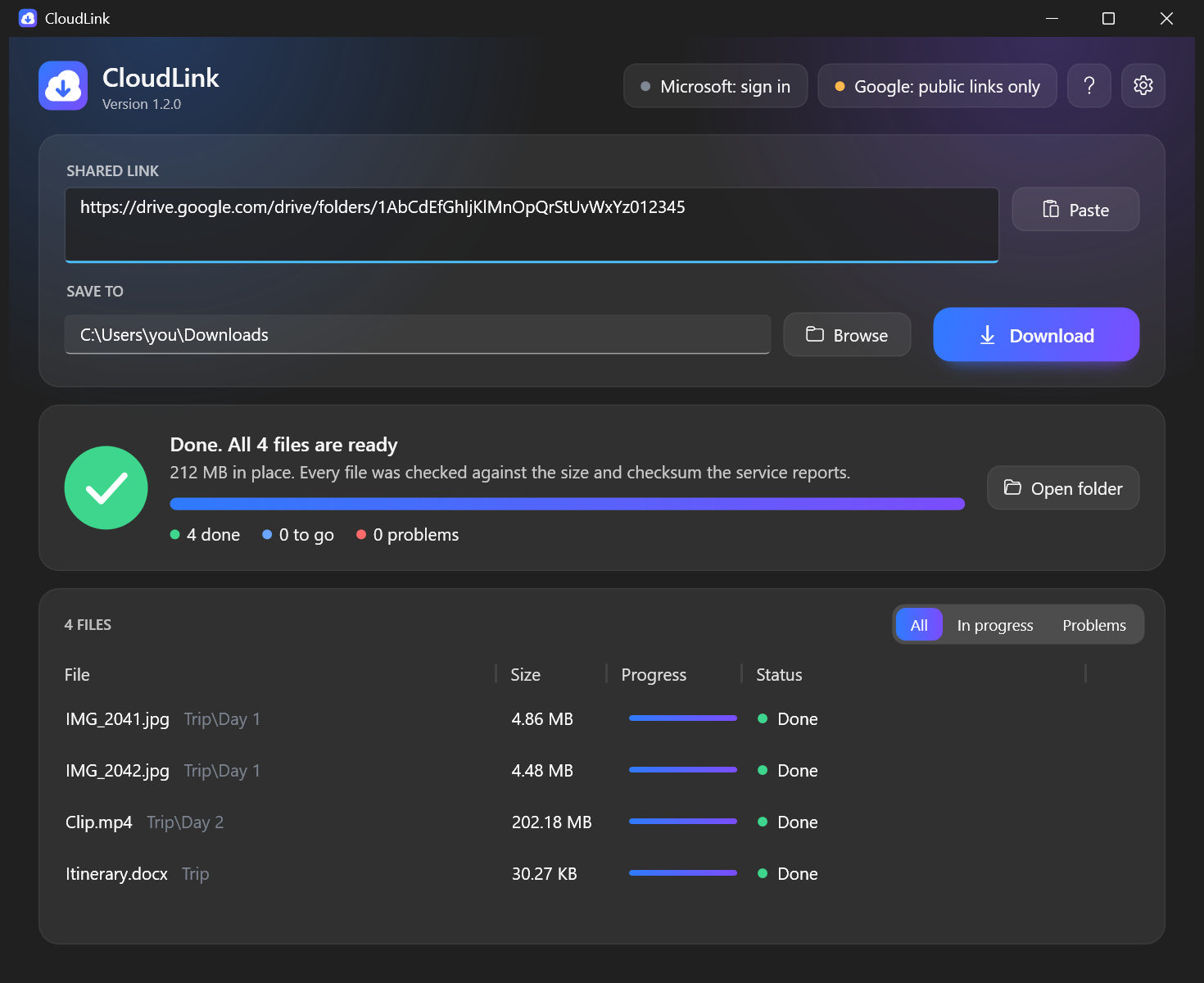
A new key, or a change to its restrictions, can take up to five minutes to start working.
What a key cannot do:
- It opens only what is public. A private link ends with Not found; for those, use route B.
- Items inside a public folder that are not themselves open to anyone with the link can be left out of the list, so they are not downloaded.
- A Google document larger than 10 MB cannot be exported with a key, only when signed in.
If a key ever gets out, delete it on the Credentials page and create a new one.
Route B: sign-in, for private links
With this route you sign in to Google from CloudLink, and CloudLink can download whatever that Google account can open. What you create in the console is called an OAuth client. It belongs to your project, and only the accounts you list can sign in through it.
These steps follow Google's current documentation and CloudLink's code, but CloudLink's Google sign-in has not yet been tried against Google itself. So far it has only passed automated tests against a local stand-in server, and the CloudLink pictures below show sample data. If a step does not match what you see, or the sign-in does not work, please open an issue.
In the Google Cloud console, in the project from Before you start:
- Open the menu → Google Auth platform. On a new project it says that the platform is not configured yet; press Get started.
- Fill in the four parts, pressing Next after each of the first three:
- App Information: an App name, for example
My CloudLink(Google does not accept names that imitate its own products), and your address as User support email. - Audience: External.
- Contact Information: your e-mail address.
- Finish: tick the agreement to Google's user data policy, press Continue, then Create.
- App Information: an App name, for example
- Add yourself as a test user. Open Audience and, under Test users, press Add users. Enter the Google address you will sign in with, and any other that should be able to, and press Save. Google refuses every account that is not on this list.
- Say what the app may ask for. Open Data Access → Add or remove scopes. Tick the row whose scope ends in
/auth/drive.readonly(described as See and download all your Google Drive files), or pastehttps://www.googleapis.com/auth/drive.readonlyunder Manually add scopes. Press Update, then Save. - Create the client. Open Clients → Create client. For Application type choose Desktop app, type any Name, leave the box about an AI-powered agent unticked, and press Create.
- Copy the client ID and the client secret straight away, from the dialog Google shows, or download the JSON file offered there; in that file they are the values of
client_idandclient_secret(open it with Notepad). Google shows the whole secret only this once. If you missed it, open the client on the Clients page, press Add secret and copy the new one. Treat the secret and the file like a password: do not post them, and leave them out of anything you attach to an issue.
The overview page may warn that the app is not verified or that there is no billing account. For your own use those warnings can be left alone.
In CloudLink:
Click the Google button at the top right. It reads Google: set up, or Google: public links only if you have saved an API key.
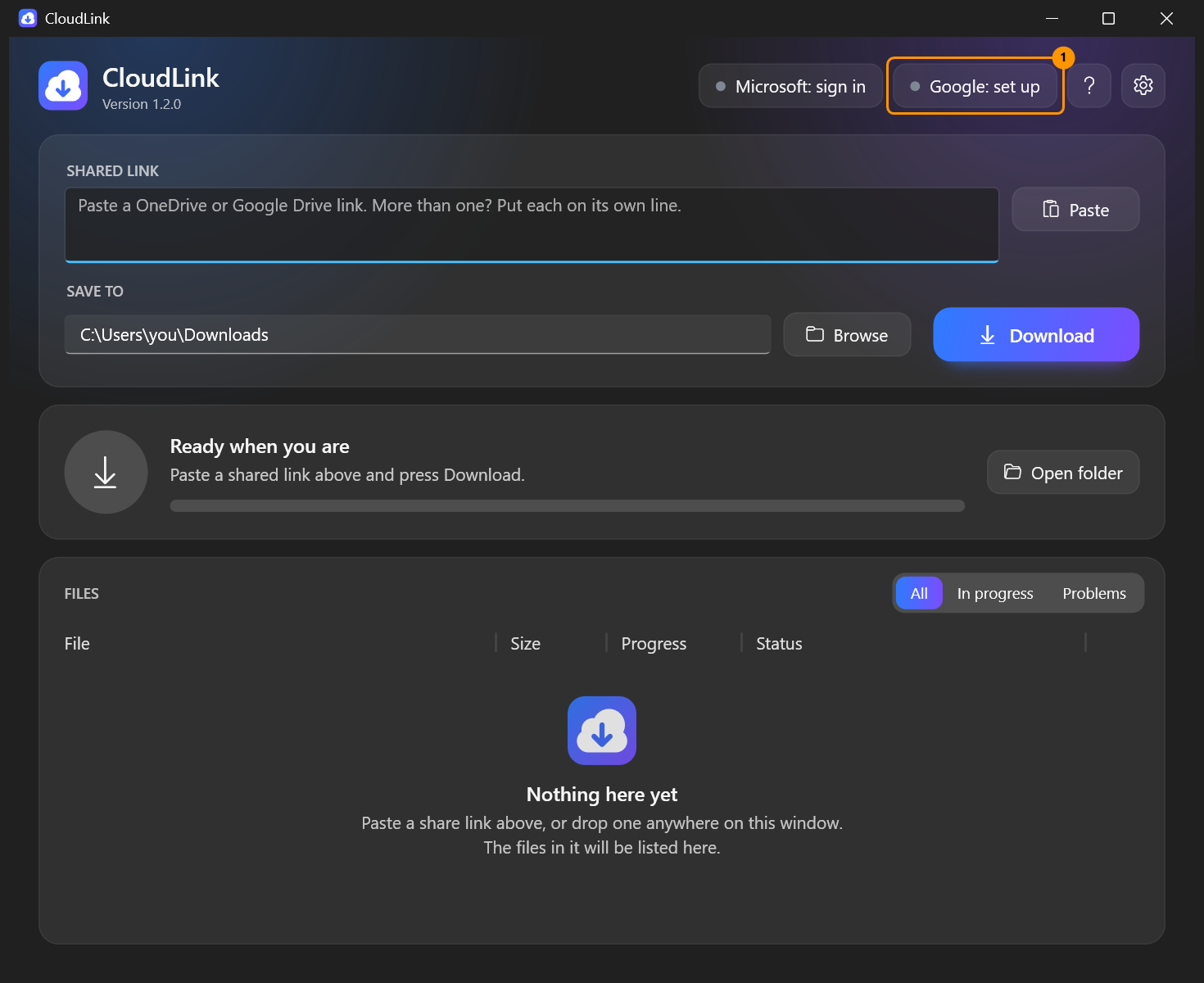
Settings opens, because no client is saved yet. Paste the OAuth client ID and the OAuth client secret, and press Save.
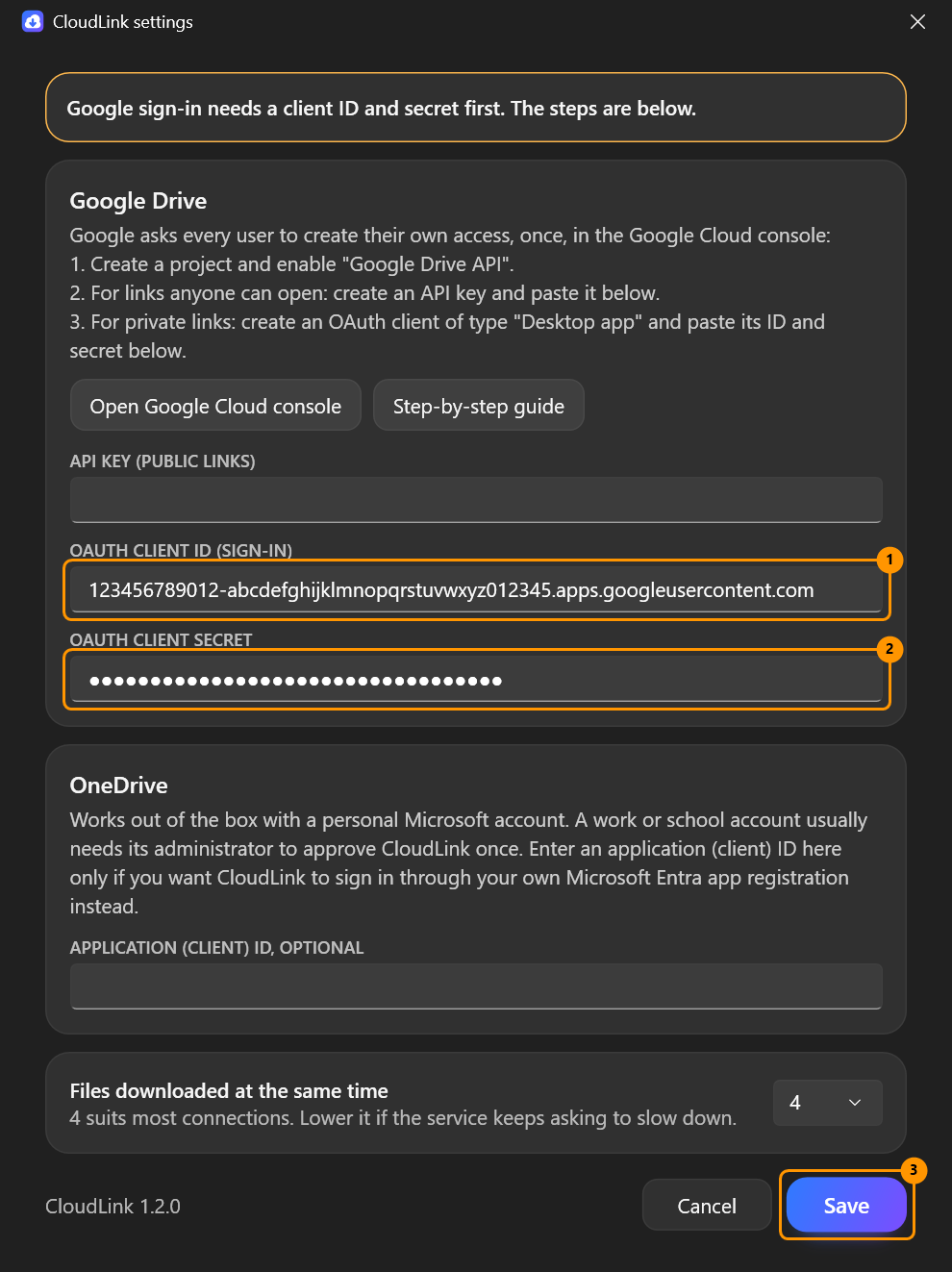
Your browser opens on Google's pages, and CloudLink waits for you.
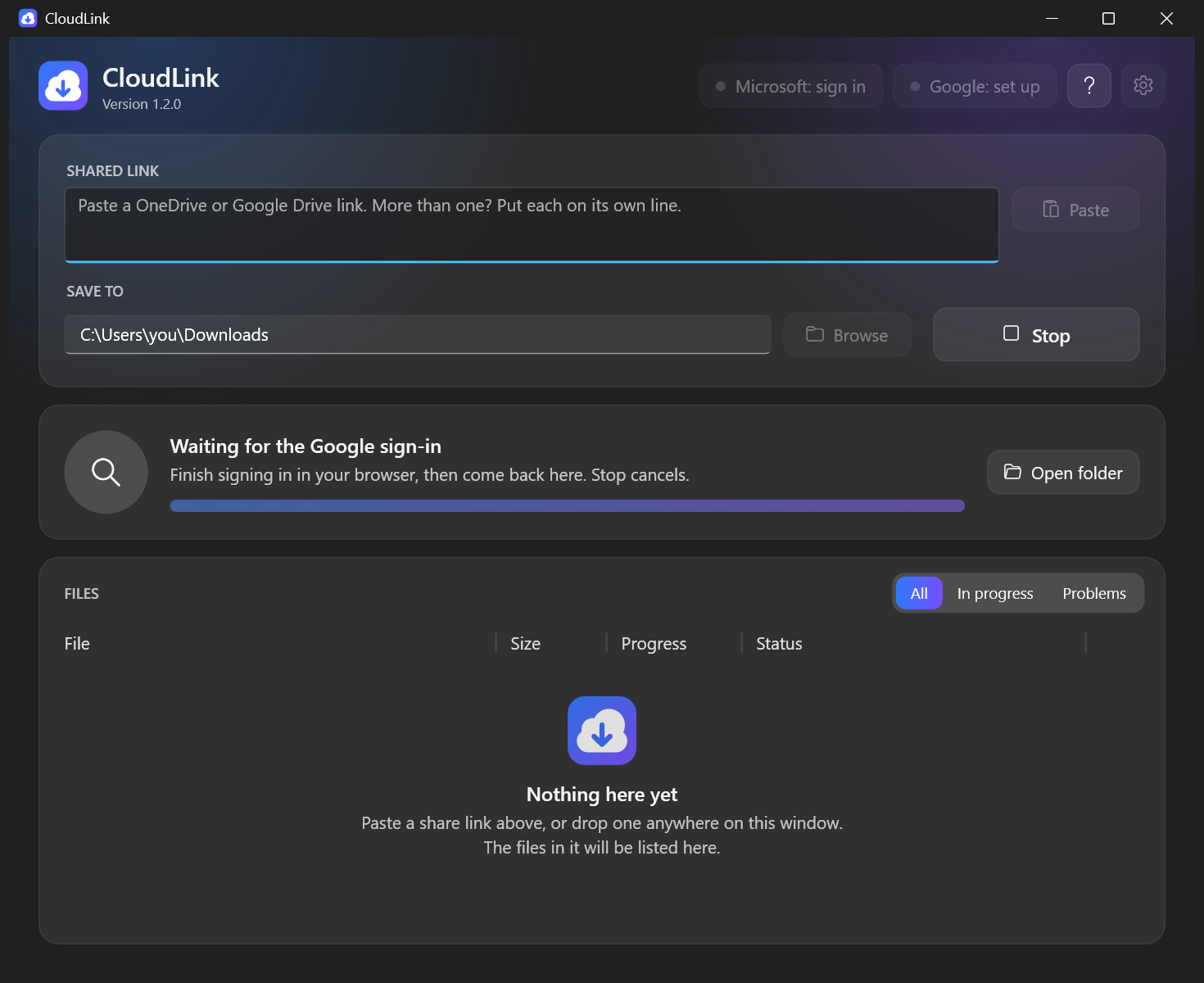
In the browser:
- Choose the Google account you added as a test user. If Google does not ask, it uses the account the browser is signed in with.
- Google shows Google hasn't verified this app. That is expected: it is your own app, in testing. Press Continue.
- Google asks whether the app may see and download all your Google Drive files. Press Continue (the button may read Allow).
- The page says Signed in. Go back to CloudLink.
The Google button now shows your address and a green dot. Paste the private link and press Download.
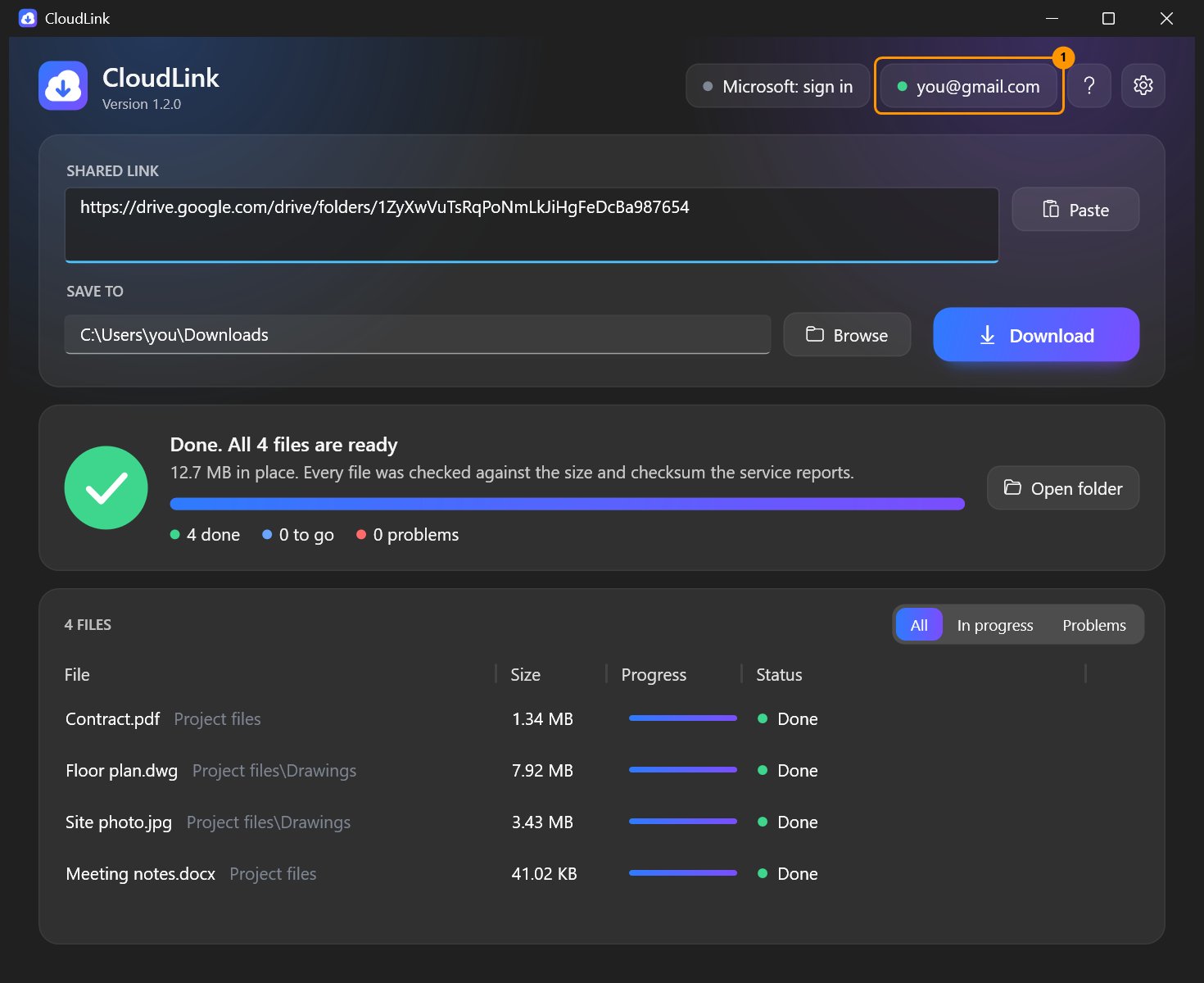
If you opened Settings with the gear instead and saved the client there, nothing more happens by itself: click the Google button to sign in.
Every seven days. These steps leave the app in Google's Testing state, and in that state Google ends a sign-in seven days after you approved it. CloudLink shows nothing until the next download; then the browser opens again and you sign in as in CloudLink step 3.
In a Google Workspace organisation, a project that belongs to the organisation can choose Internal instead of External in console step 2. Only members of the organisation can then sign in, and no test users are needed.
If the browser shows an error instead of returning to CloudLink, CloudLink cannot see it and keeps waiting. Press Stop, put the cause right, and click the Google button again.
| Google says | Usual cause |
|---|---|
Access blocked, error 403 access_denied | The account is not on the test users list (console step 3), or the browser used a different Google account. |
Error 401 invalid_client or deleted_client | The client ID in Settings is not the one from the console, or the client was deleted there. Google also deletes a client by itself after six months without use; create a new one and paste the new ID and secret. |
Error 400 redirect_uri_mismatch | The client was not created with the type Desktop app. |
Error 400 admin_policy_enforced or policy_enforced | A work or school administrator, or Google's Advanced Protection Programme, does not allow it for this account. |
Taking it away again. In CloudLink, click the Google button and choose to sign out. To withdraw the permission at Google, open https://myaccount.google.com/linkedapps. In the console you can delete the client on the Clients page and the key on the Credentials page. Google itself deletes a client that has not been used for six months.
Checking your download
This section is about CloudLink.exe downloaded from GitHub. A copy installed from the Microsoft Store (AMG CloudLink) is checked and signed by the Store, and none of this applies to it.
CloudLink's exe is signed, but with a self-signed certificate. Windows therefore shows Windows protected your PC the first time you start it (choose More info → Run anyway) and lists the publisher as unknown. Your browser may also ask you to confirm keeping the download. If Smart App Control is switched on in Windows 11, it may block the program without offering Run anyway.
To confirm that the file is the one that was published, compare its checksum with the SHA256SUMS.txt of the same release on GitHub:
Get-FileHash .\CloudLink.exe -Algorithm SHA256The two must be the same. Capital and small letters make no difference: Get-FileHash prints capitals, the file has small letters. Verifying and signing explains the signature as well.
Troubleshooting
| What you see | What to do |
|---|---|
| Not found, or the link no longer works | The link is incomplete, was withdrawn, or the signed-in account may not open it. Open it in a browser with the same account to check. |
| Not found for a Google Drive link while the Google button reads Google: public links only | The link is private, and an API key opens only public ones. Click the Google button and sign in; see route B. |
| Access denied | Sign in with the account the item was shared with. |
| Access denied for a Google Drive link when you use an API key | CloudLink puts Access denied in front of several different answers from Google, so read the rest of the line first. If it says the file is too large to be exported, see the row about Google documents below. If it mentions a rate limit and ends in Trying again in n s, CloudLink is retrying by itself and there is nothing to do. Otherwise the key is probably not allowed to call the Drive API: check that its API restriction is Google Drive API, that Application restrictions is None, and that the Drive API is switched on in the project; then allow five minutes. See route A. |
| API key not valid | The key was mistyped, or deleted in the console. Copy it again into Settings. |
| Your organisation requires an administrator to approve CloudLink / Need admin approval in the browser | Your work or school does not let you approve apps yourself. Close the page, press Stop in CloudLink if it is still waiting, and see Work and school accounts. |
| Microsoft's page shows an error instead of a sign-in form | The fault is in the app registration CloudLink signs in through, not in your account. Press Stop, and please report it. Until it is fixed you can enter an application ID of your own in Settings; see APP-REGISTRATION.md. |
| Waiting for the Google sign-in does not end | Google is showing an error in the browser; the table under route B lists the usual ones. Press Stop, put it right and click the Google button again. |
| Sign-in did not work just after the browser said Signed in (Google) | The client secret in Settings is wrong. Copy it again, or add a new secret in the console and paste that. |
After signing in, the browser says the page at 127.0.0.1 cannot be reached | The sign-in was finished after CloudLink had stopped waiting (you pressed Stop, or ten minutes passed). Click the Google button and sign in again. |
| The Microsoft sign-in was not finished in time or The Google sign-in was not finished in time | The browser page was closed, or left open for more than ten minutes without finishing. Click the Microsoft or Google button at the top right to sign in again. If Microsoft's page said Need admin approval, see the row about that message further up. |
| The Microsoft sign-in was cancelled, or the permission was not granted (or the same with Google) | Click the Microsoft or Google button at the top right to sign in again, and accept the permission page; CloudLink cannot work without it. |
| The service asked to slow down, or for Google Drive Access denied with a mention of a rate limit, followed by Trying again in n s | Nothing; CloudLink waits and continues. If it happens a lot, lower Files downloaded at the same time in Settings. |
| Not enough free space | Choose another folder or free some space, then press Download again. |
| Google hasn't verified this app in the browser | Expected for your own project in Testing. Press Continue. |
| The browser opens for a Google sign-in although you were signed in | In Google's Testing state a sign-in lasts seven days. Sign in again. |
| A Google document fails, saying it is too large to be exported | Documents over 10 MB can only be exported when signed in, not with an API key. |
| Windows says Unknown publisher when starting CloudLink | See Checking your download. |
| Windows blocks CloudLink and does not offer Run anyway | Smart App Control is switched on in Windows 11. See Checking your download. |
| Something else | Help → Open log shows what happened, with the service's own error text. |
Where things are kept
CloudLink keeps its settings, sign-ins and log in one folder. Help shows its address and can open it.
CloudLink.exefrom GitHub:%LOCALAPPDATA%\CloudLink. It stays until you delete it.- Installed from the Microsoft Store:
%LOCALAPPDATA%\Packages\AMGCloudEngineering.AMGCloudLink_zwcny3vzz9sd6\LocalCache\Local\CloudLink. Windows removes it when CloudLink is uninstalled.
The two versions do not share settings or sign-ins, and only one of them runs at a time: starting the second brings the first one's window forward.
The folder holds:
settings.json: your settings, including the address of each signed-in account and the last folder used. The Google API key and client secret in it are encrypted for your Windows account.microsoft.token,google.token: the sign-ins, encrypted for your Windows account.cloudlink.log: the log.
Deleting the folder resets CloudLink. Downloaded files are tagged as coming from the internet, the same way browsers tag them, so Windows and Office apply their usual caution when you open them.